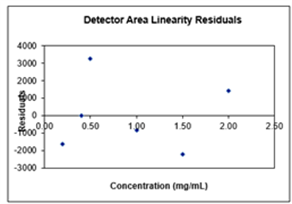
Rescaling Graphs in the HPLC Qualification Kit Excel Template - Tips and Suggestions
December 8, 2021
/
/
/
Date: 8-DECEMBER-2021 Last Updated: 2-JULY-2025
Steps to manually re-scale the Y-axis in the PQ Kit template
Please use the following instructions to format and scale the Y-axis of graphs in the Chemical Solutions HPLC PQ Kit's Excel template:
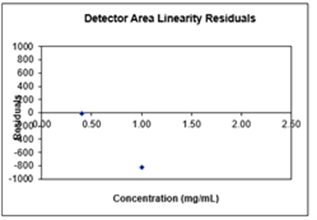
1. In the detector linearity tab of the PQ RID spreadsheet, right click on the detector linearity residual graph.
---
-
-
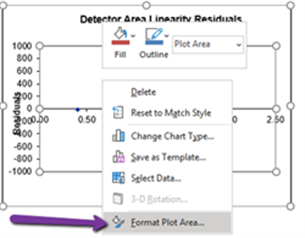
This will open a tab of options. Click "Format Plot Area."
---
-
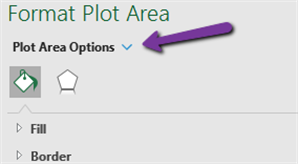
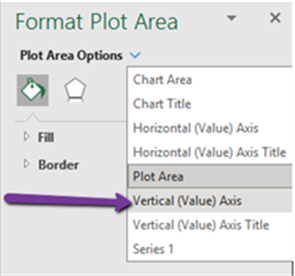
This opens a new grey tab to the right of the screen, labeled, "Format Plot Area." Click the blue arrow next to the "Plot Area Options."
--
-
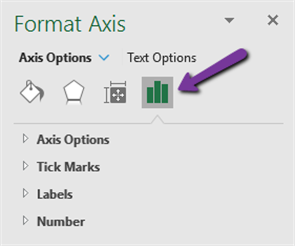
Next, click the 'Graph' icon.
--
-
This will open a list under “Plot Area Options.” click the "Vertical (Value) Axis" option.
---
-
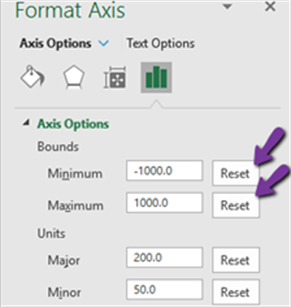
This will open a tab to “Axis Options.” Then Check “Reset” on both the Minimum and Maximum Bounds.
---
-
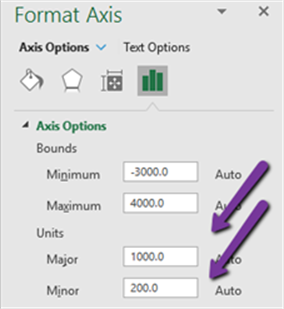
Then check “Reset” on both the Major and Minor Units.
---
-
Your new graph should now be to scale and display all data points.
---